The editor
Three panes. One canvas.
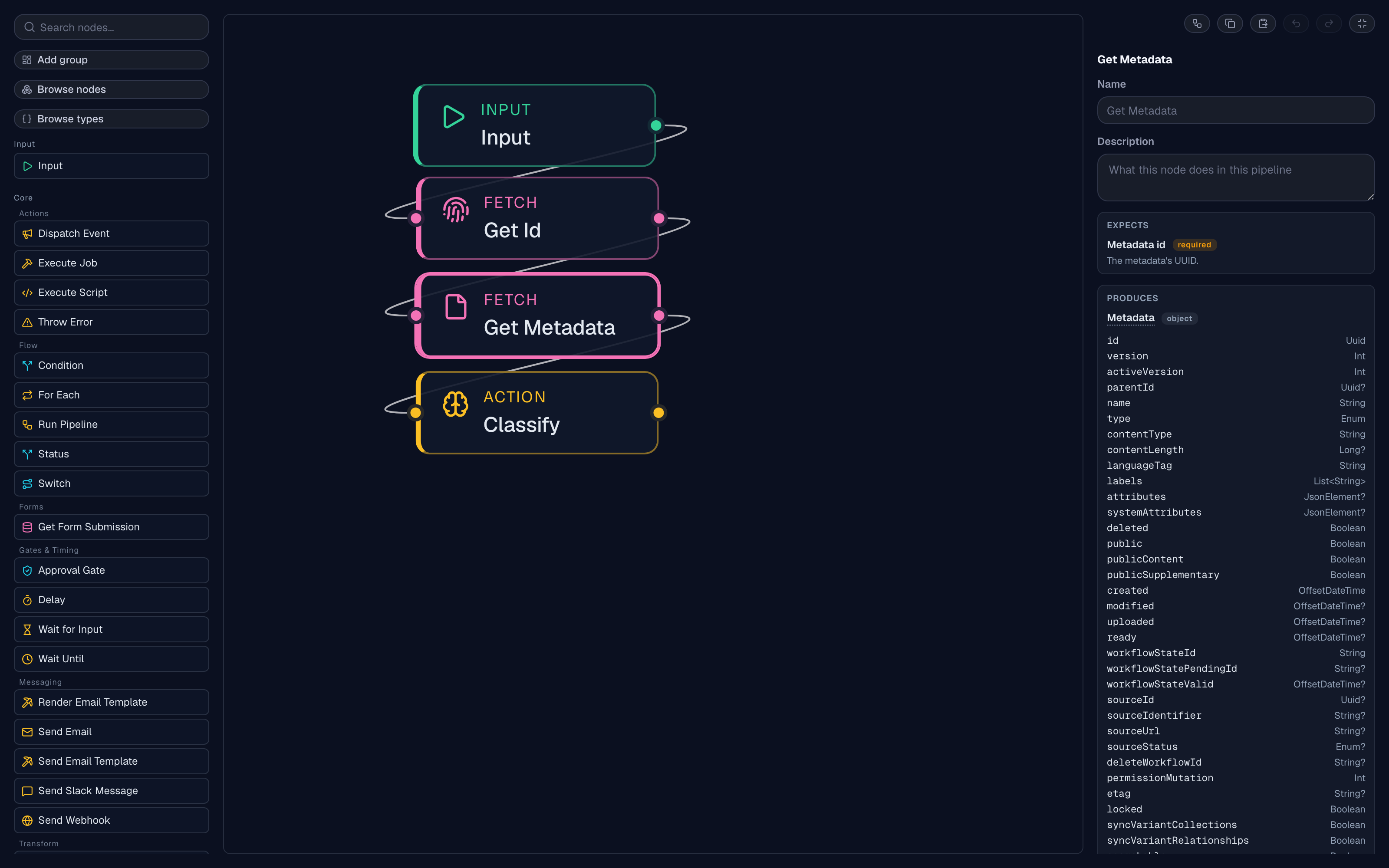
Pipelines are built in Studio's graph editor: a node palette on the left, the canvas in the middle, and an inspector on the right that configures whatever is selected. Drag nodes on, draw edges between them, and the graph you see is the automation that runs.
The workspace
Palette, canvas, inspector
The palette lists every node type available in your installation, grouped by category — hover for a description, click to add, or drag to place. Selecting a node opens its settings in the inspector: a name and description for what it does in this pipeline, then whatever the node type contributes — a JSONata expression, a script picker, email fields.
- Maximize expands the editor to the full viewport for larger graphs;
Escaperestores it. ⌘Zundoes any graph change,⇧⌘Zredoes,Deleteremoves the selection.- The pipeline's metadata — name, accepted event, description, and the Active switch — sits above the canvas.
Typed connections
Edges that refuse to be wrong
Connection handles follow the node's category, and input slots are typed — object, string, integer, UUID. The editor refuses a connection whose value kind the target slot cannot accept, so a wiring mistake surfaces while you draw it, not in a failed run.
- A Condition routes out a green true handle and a red false handle; a Switch gets one handle per case plus a default.
- Some nodes expose a red error port — wire it to route failures into recovery logic instead of aborting the run.
- Edges into a Combine node carry a port name; each inbound branch becomes that key in the merged result.
Working safely
Built for shared editing
Group frames
Organize large graphs with labeled, color-coded frames drawn behind related nodes. Groups are purely visual — the executor ignores them — but they save with the graph, and a group can be collapsed while you work elsewhere.
Versioned saves
Saving validates the graph and increments the pipeline's version, which doubles as optimistic locking: if someone else saved since you loaded, your save is rejected instead of silently overwriting their work.
Safe by default
Cloning a pipeline copies the full graph but arrives inactive, so it never fires before you've reviewed it. Deletes are soft — the pipeline stops matching events immediately, but its run history is retained.
Keep exploring
More on Pipelines
Pipelines overview
What a pipeline is, how it executes, and what it can do.
The node vocabulary
Transforms, routes, actions, and the nodes your domains contribute.
Dry runs
Trace a sample event through the graph before anything goes live.
Triggers & runs
Event-triggered, durable execution with every run logged.